The most useful work is often the same work, again. The Monday sales summary. The morning brief. The reminder to chase an invoice next Friday.
Schedules hand that to your agent. Say what should run and when, once. The agent does the rest, on time, in the chat you asked in.

Ask, then confirm
Ask in plain words:
"Every Monday at 9, total last week's invoices in the FY26 ledger and send me the figure."
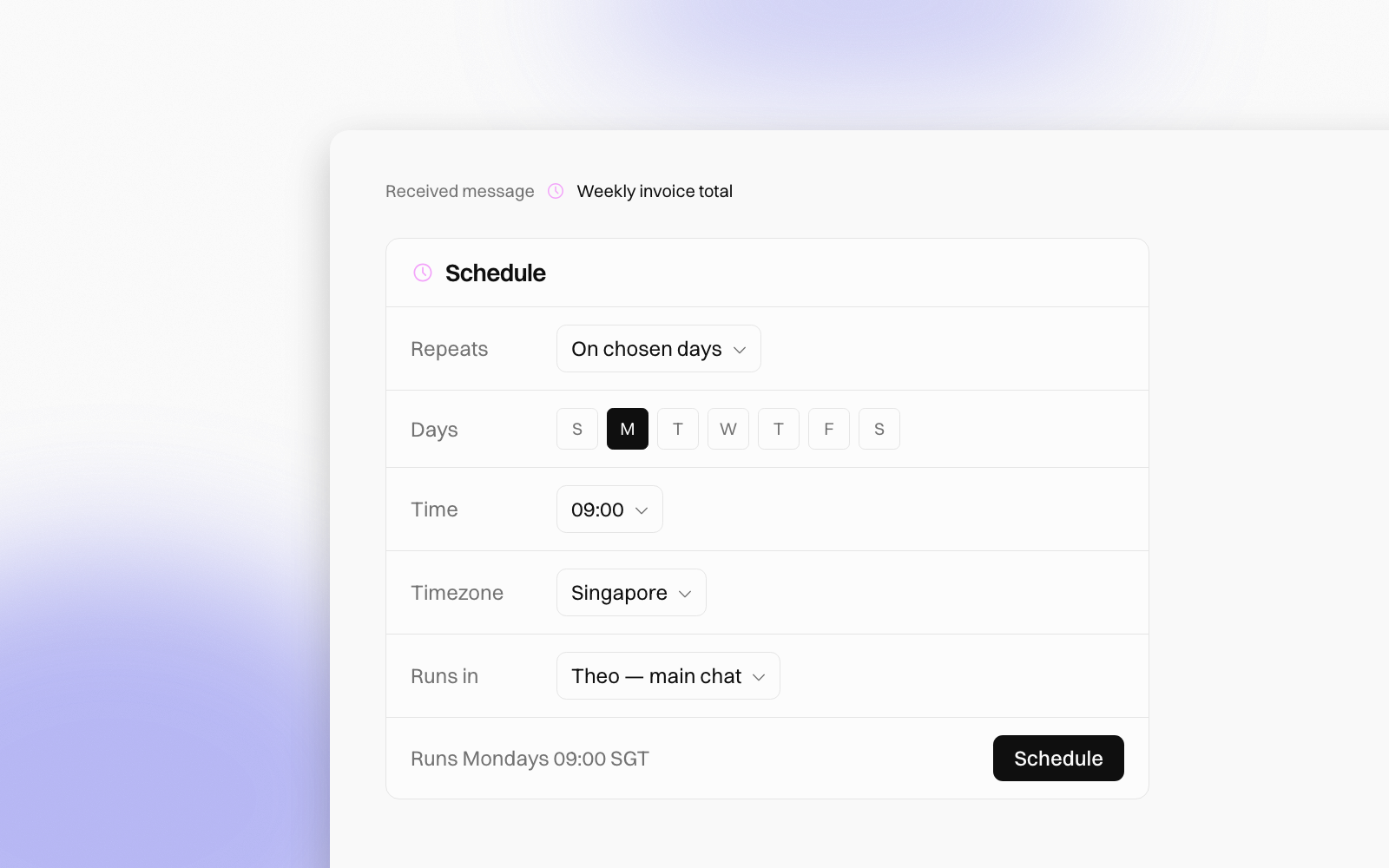
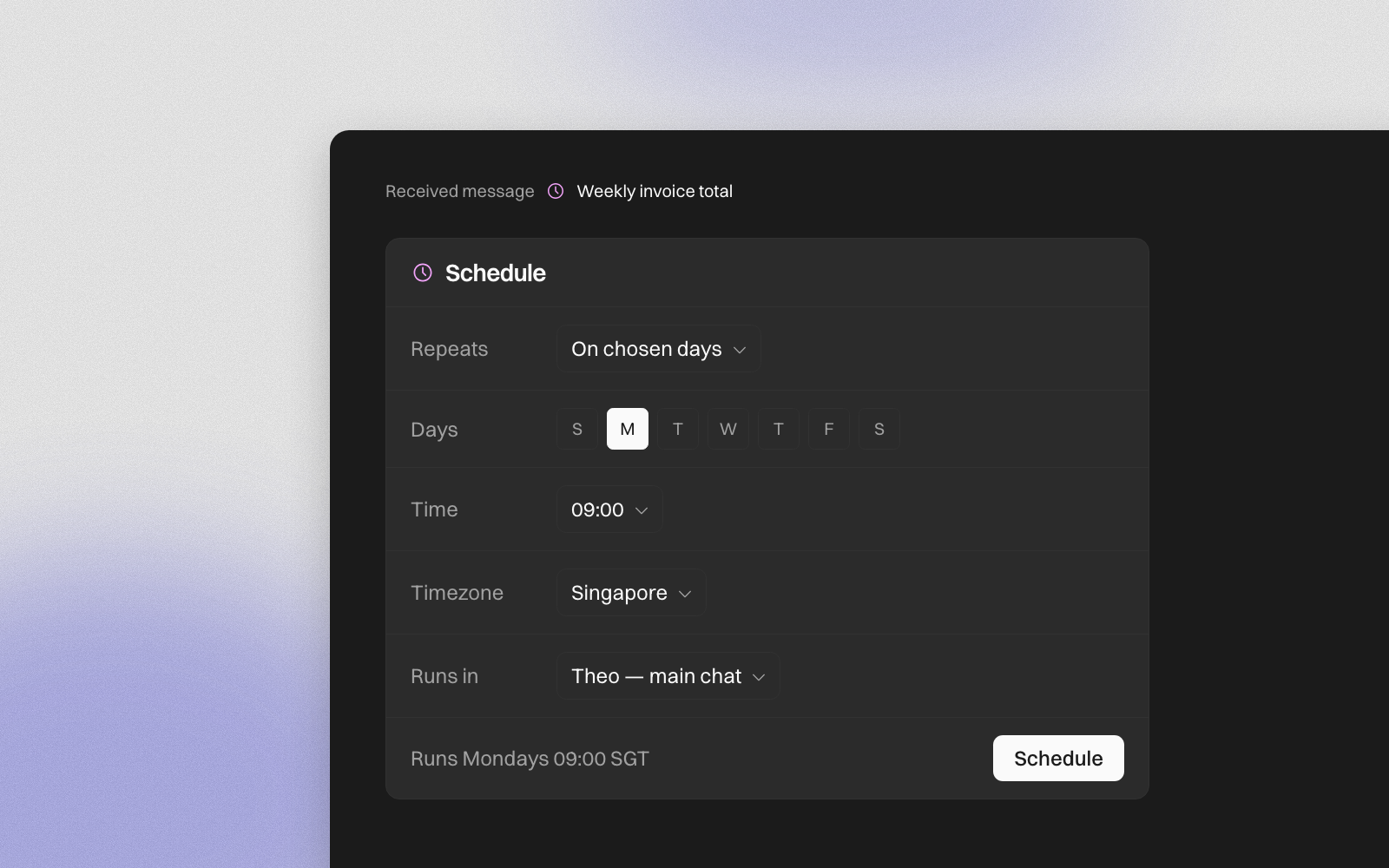
The agent replies with a Schedule card filled in with what it understood: a name, when it runs, the chat it runs in, and what it does each time. Change anything that's off, then press Schedule.

Nothing is set up until someone presses it. On a shared agent, the person who asked, the owner or a Full member can confirm the card.
Every run lands in your chat
A schedule runs in a chat you already have: the agent's main chat, its team room, or one of its tasks. It doesn't spin up a new task each time.
Each run starts with a quiet Received message line and the schedule's name. The answer follows, the same as if you had asked. In the agent pane, the schedule sits under the chat it runs in, so you always know where to look.
Any rhythm
- Once, at a date and time. A one-time reminder removes itself once it has run.
- Every few minutes, hours, days or weeks.
- On chosen days, such as weekdays at 08:30.
Pick a timezone from Dubai and Kolkata to Tokyo and Perth, or UTC. If you prefer forms to asking, click the + beside Tasks and choose the Schedule tab.
Results on Telegram
Once you've paired with the agent's Telegram bot, turn on Telegram in a schedule. Each result is then also sent to your Telegram chat with the agent. That's handy for the morning brief you want on your phone.
Everything in one place
Settings → Schedules lists every schedule that runs as you, grouped by agent. Switch one off, edit it, or delete it.
Going on leave? Pause all my schedules stops every schedule that runs as you, in one go. Each keeps its own setting, so switching the pause off brings back exactly what was running.

Learn more
To set up your first schedule, change one, or understand what Missed and Failed mean, read the Schedules guide. For a one-off nudge, see One-time reminders.
People change. The know-how stays.