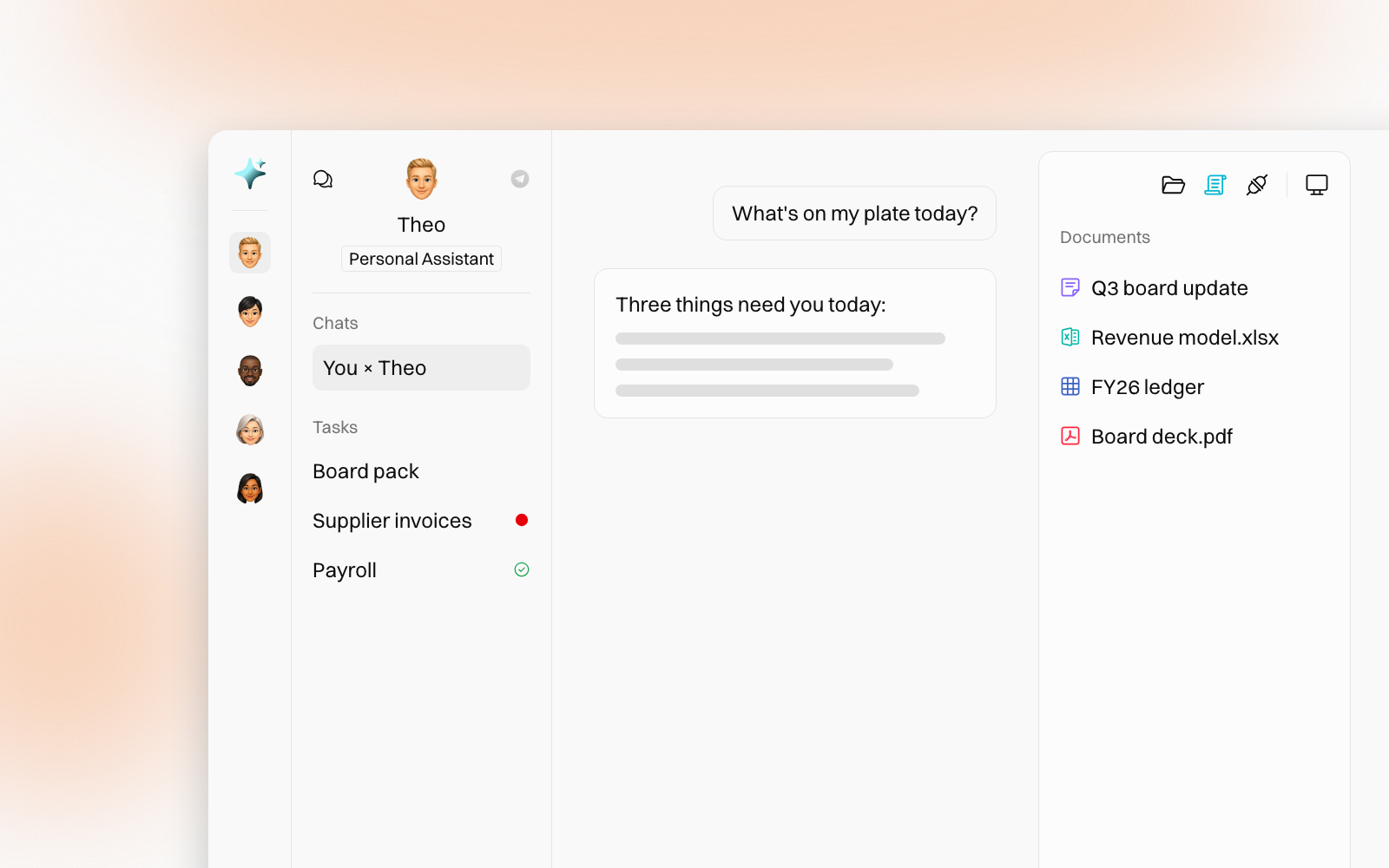
Agent Hero has a new layout. We rebuilt the window around the way teams actually work with an agent: talk in the chat, and keep the work it produces right beside you.
Your agents, chats and documents are all where you left them. Here is what moved, and why.

Chat first, your work beside it
The chat now leads the window. Everything the agent works with sits to its right, in the new Computer panel.

The Computer panel has three tabs: Documents, Skills and Subscribe. One shows at a time, so the list you need gets the whole height. Open a document and it opens beside the list, while the chat stays in view.
Two icons in the header's corner show or hide the chat and the Computer panel. On a narrower window only one fits, so they take turns.
Telegram has a new home too: a Telegram button in the header, beside the agent's role. It turns from grey to full colour once the agent is on Telegram.
One header across the window
A single row now runs across the top. It names the agent and its role, with its Telegram button, shows the people on it, and holds the panel toggles.
The middle shows the agent's face, then the faces of the people on it, owner first. The ⊕ after them invites someone. On an agent someone shared with you, a badge beside the role shows your access: Viewer, Editor or Full.
A simpler menu


- One Agents group. Personal and team agents share one list, your Personal Assistant first. Drag to put your daily ones on top, in the menu or on the strip. A gap opens where the agent will land.
- Faces on team agents. In the menu, the people on a team agent show under its role. On the strip, point at an agent to see its name, role and people.
- One number per agent. Red means a run failed, amber means it's waiting for you, green means something new finished or arrived since you last looked.
- A tidier strip. Search sits at the top and New agent heads your agents. A long list scrolls, and a number such as +3 counts the agents below. Open menu sits near the foot, then Agents Library and your picture. User Guide, light or dark mode and Settings live in your picture's menu.
- Connectors at a glance. A connector agent shows its logo on the strip, and Connected, Needs attention or Not connected with its account in the menu. On the strip, point at it to see the same.
- Settings up top. Settings joins New Agent, Agents Library, User Guide and Search at the top of the menu.
- The guide, one click away. A new User Guide row opens these guides in a new tab.
- Snap it open. Drag the menu's edge to the right and it snaps open. Drag it back and it snaps shut.
- Search where you look. A search field heads the agent pane and the Computer panel. It opens Search, or press ⌘K.
Quieter answers
While the agent works, a single line says it is typing, instead of a rotating status.
The steps behind an answer no longer sit in the conversation. Hover a reply and click the Turn details icon to see every step, how long it took and what it used.
Smaller touches
- One + for files and skills. The round + sits at the message box's left. It opens Attach file and your skills, the same menu as typing /. The mic sits beside Send, and the balance chip left the chat: admins find the balance in Billing.
- Room to drop files. The document list runs the panel's full height, so you can drop a file anywhere below the last row.
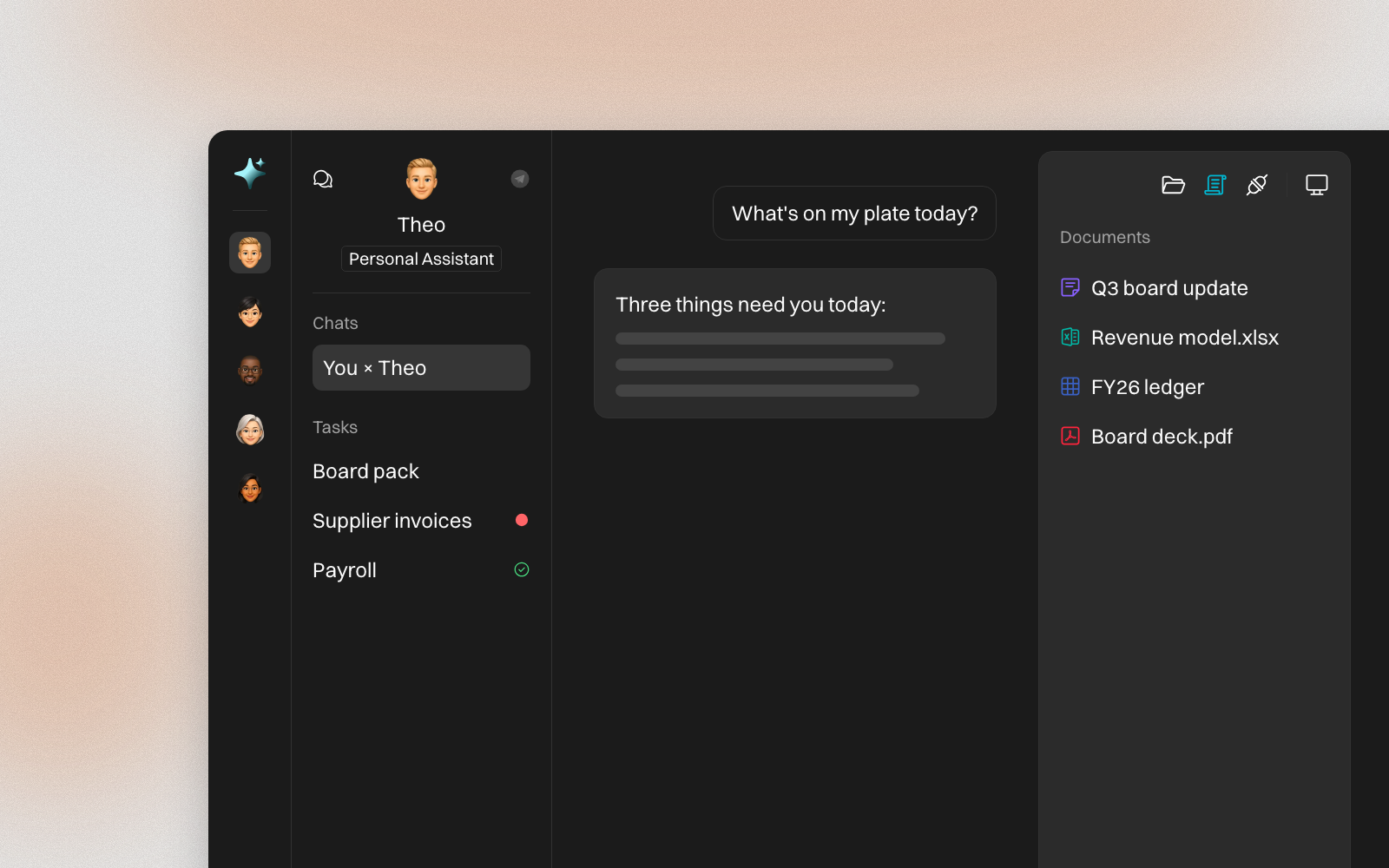
- One look. Every dialog was rebuilt in one consistent style, the dark theme is lighter, and every browser tab says where you are.
- Settings starts with you. Settings opens on Profile & Security, and every settings page shares one header.
- On a phone. The agent pane folds to one row, the menu fills the screen, and Agent and Computer tabs swap the chat and the panel.
Find your way around
To learn the new window part by part, read Overview of layout.
People change. The know-how stays.